Improve 3D Model Textures with AI in Photoshop and 3DCoat
Send texture projections into Photoshop, refine them with AiPainter, and reload the result on the model.
Read guideThe same account works for the website and the plugin. After email activation, you go straight to the cabinet.
We will send a one-time link. The `PS token` field is optional.
Watch a short video showing how to install and launch AI Painter.
Follow the official Adobe installation flow—no manual file copying is required.
Open AI Painter in Adobe Exchange and choose Install.
Allow the browser to open Creative Cloud Desktop. It downloads the plugin and registers the panel automatically.
If Photoshop was open during installation, restart it. Then open Plugins > Plugins Panel and select AI Painter.
Choose Sign in with browser, complete authorization, and return to Photoshop. AI Painter is now ready to use.
Connect the plugin, make your first generation, then top up when you need more.
Watch the complete workflow, install the Photoshop plugin, and explore practical guides.
No subscription. Pay once, use anytime.
Step-by-step workflows for Photoshop, AI image generation, and 3D production.
Send texture projections into Photoshop, refine them with AiPainter, and reload the result on the model.
Read guide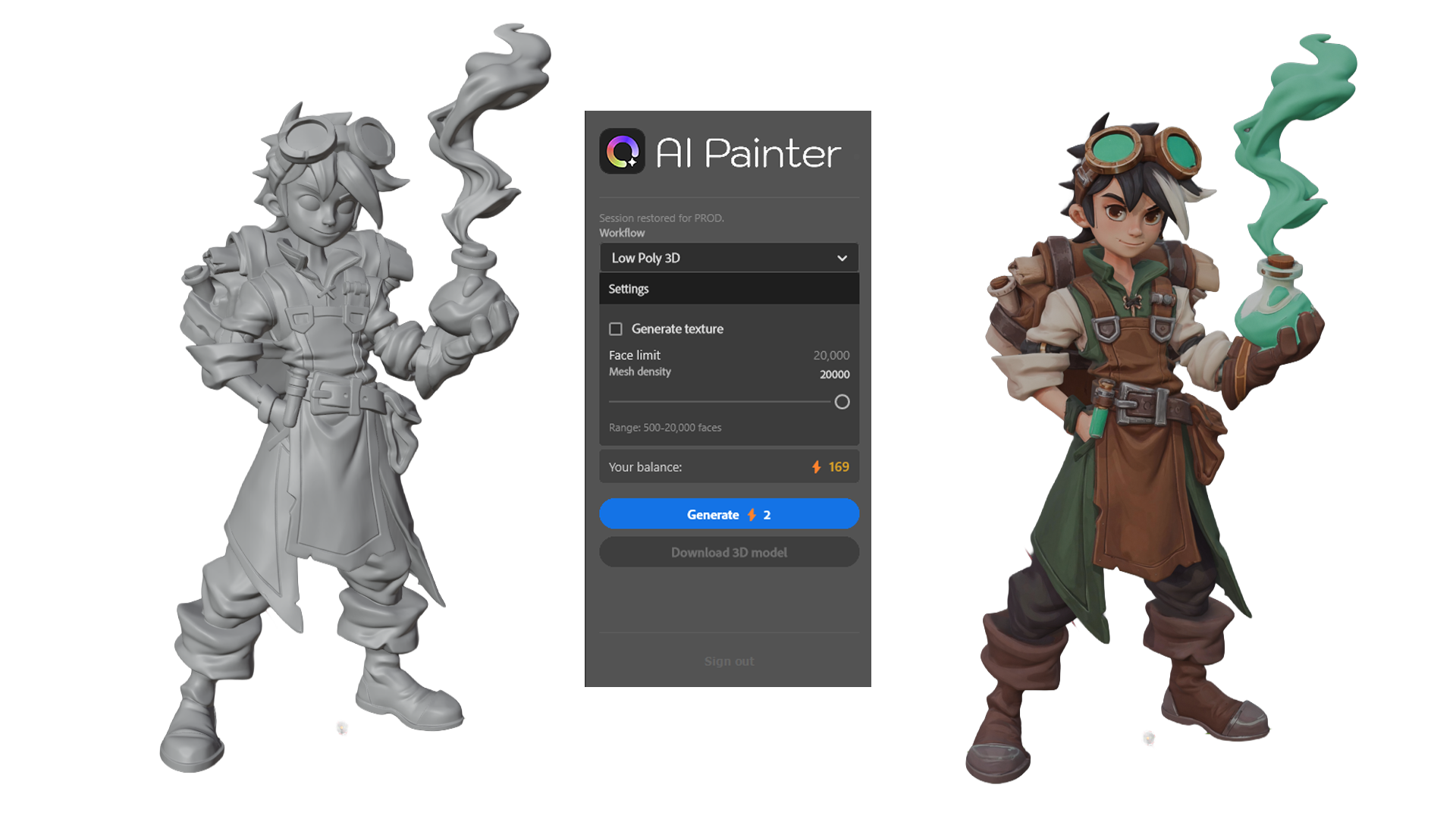
Prepare concept art, choose the right AI 3D draft, and inspect the result before continuing in your 3D tool.
Read guideUpload API-format JSON or paste the text. After import, the workflow will appear in your plugin presets.
These settings override workflow execution parameters. Use them only if you understand the system architecture.
Critical operation. Be careful when filling in the fields.
Create or update an account that can sign in through the Photoshop bridge without email confirmation.
Manage system presets without editing `presets.json` or restarting.